Momentum Pullback
SETTING MANUAL
1/ What is the Momentum Pullback indicator?
Introduction:
The Momentum Pullback Indicator is a trend-following pullback tool designed to help traders enter high-probability trades in the direction of a strong trend,instead of fighting it.
Unlike traditional reversal indicators that trigger signals in every market condition, Momentum Pullback first confirms the existence and strength of a trend using the ZigZag Trend Percent algorithm.
Only after a strong trend is confirmed does the indicator wait for a controlled pullback into overbought or oversold conditions. A trade signal is generated only when momentum turns back in the direction of the dominant trend, helping traders avoid false tops and bottoms.
Benefits:
- Trend-Validated Entries: Generates trade signals only after a strong trend is confirmed, effectively avoiding counter-trend trades.
- Structured Pullback Detection: Identifies entries during controlled retracements rather than reacting to random price fluctuations.
- Noise & Whipsaw Filtering: Eliminates weak corrections and short-lived momentum shifts that commonly cause false reversals.
-
Momentum Resumption Timing: Uses RSI behavior to detect when momentum realigns with the dominant trend direction.
2/ Indicator Setting - Momentum Pullback
Core Detection Settings
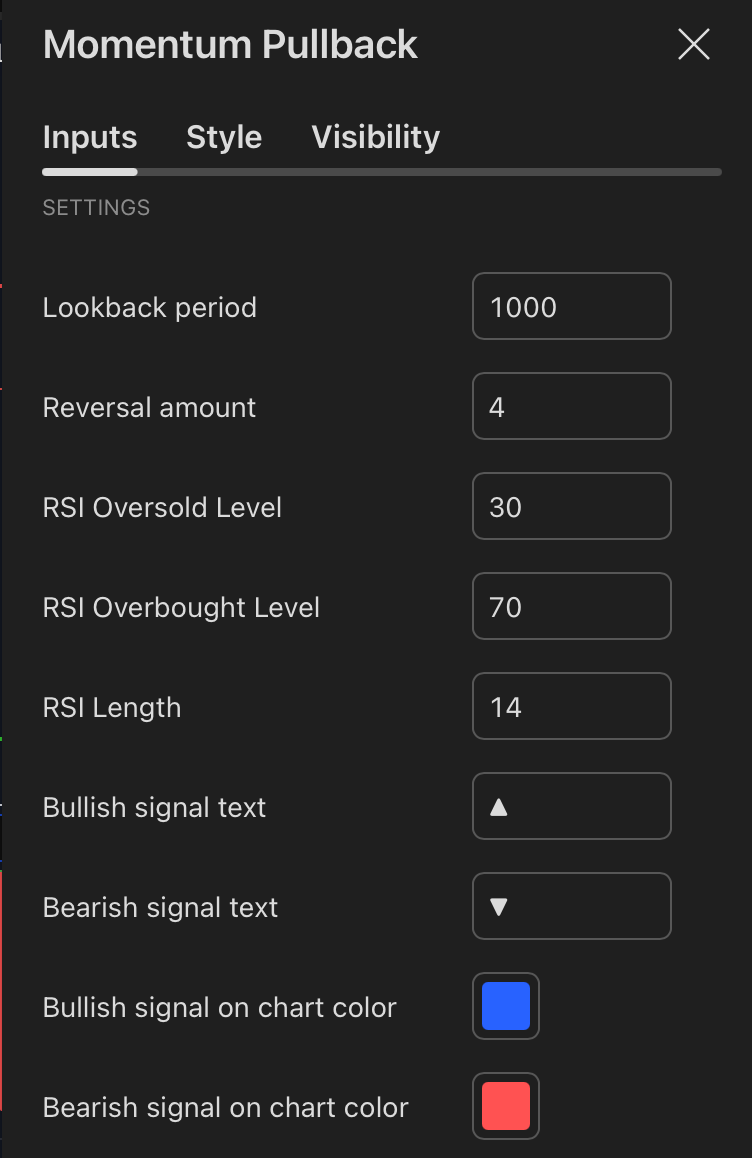
Lookback Period
Defines how many historical bars the indicator analyzes to evaluate trend behavior and pullback structure.
Reversal Amount
Sets the minimum price retracement required to qualify as a valid pullback.
This helps filter out shallow corrections and prevents entries during minor price fluctuations.
RSI Settings
RSI Oversold Level
Defines the RSI level that signals a pullback during a strong uptrend.
A bullish signal is generated when RSI moves back above this level after being oversold.
RSI Overbought Level
Defines the RSI level that signals a pullback during a strong downtrend.
A bearish signal is generated when RSI moves back below this level after being overbought.
RSI Length
Sets the number of bars used to calculate RSI.
Shorter lengths respond faster; longer lengths smooth out RSI behavior.
Signal Display Settings
Bullish Signal Text
Custom text displayed on the chart when a bullish pullback entry is detected (e.g., “Buy Pullback”).
Bearish Signal Text
Custom text displayed on the chart when a bearish pullback entry is detected (e.g., “Sell Pullback”).
Bullish Signal on Chart Color
Select the color used to highlight bullish pullback signals.
Bearish Signal on Chart Color
Select the color used to highlight bearish pullback signals.
Risk Management (SL & TP)
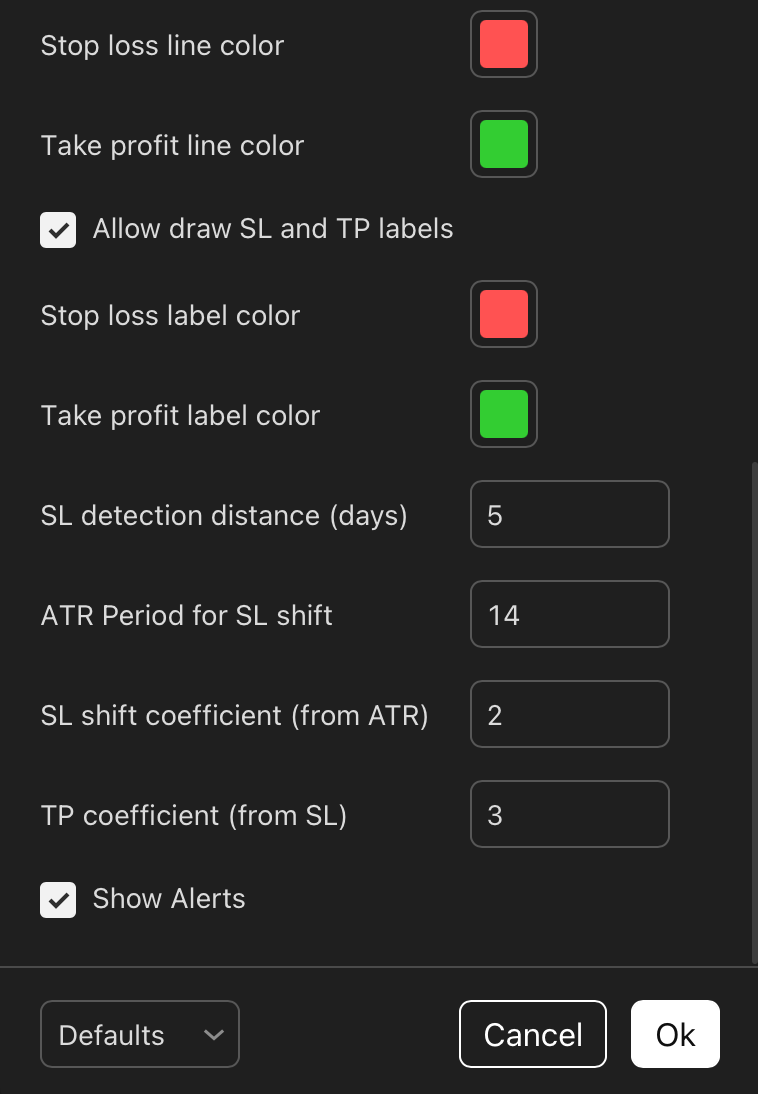
Stop Loss Line Color
Choose the color for the stop loss line plotted on the chart.
Take Profit Line Color
Choose the color for the take profit line for clear visual distinction.
Allow Draw SL and TP Labels
Enable or disable the display of text labels for Stop Loss and Take Profit on the chart.
Stop Loss Label Color
Set the color for the stop loss label.
Take Profit Label Color
Set the color for the take profit label.
SL Detection Distance (Days)
Defines how far back the indicator searches for swing highs or lows to anchor the stop loss.
Higher values place SL at more significant structure levels.
ATR Period for SL Shift
Number of bars used to calculate the Average True Range (ATR) for volatility-based stop loss placement.
SL Shift Coefficient (from ATR)
Multiplier applied to ATR to determine the stop loss distance.
- Higher value = wider stop, more tolerance
- Lower value = tighter stop, more precision
TP Coefficient (from SL)
Defines the take profit distance as a multiple of the stop loss, ensuring consistent risk–reward ratios.
Alert Control
Show Alerts
Enable or disable alerts when bullish or bearish pullback signals occur.
When enabled, alerts can be configured through TradingView’s alert system to receive notifications via pop-up, sound, email, or push message.
- How can I set up alerts?
To stay updated on potential trading opportunities, you can set up alerts within the Momentum Pullback
Step 1:
From the indicator settings, customize your alerts by defining your desired parameters. The selected configurations will be used for notifications in Step 2.
Step 2:
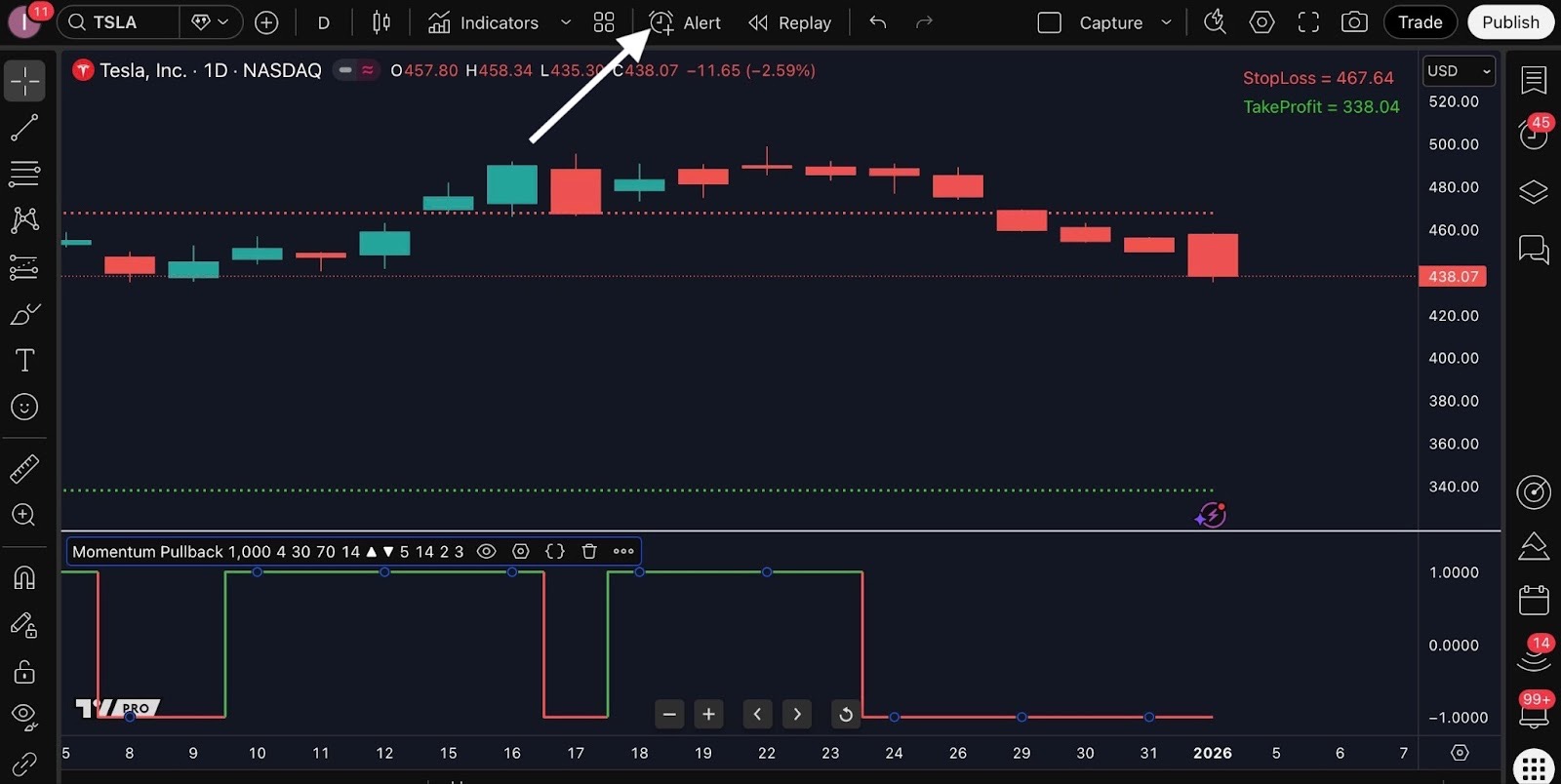
Click TradingView’s “Alert” icon to enable notifications such as pop-ups, sound alerts, emails, Webhook URL, or email-to-SMS.
Step 3:
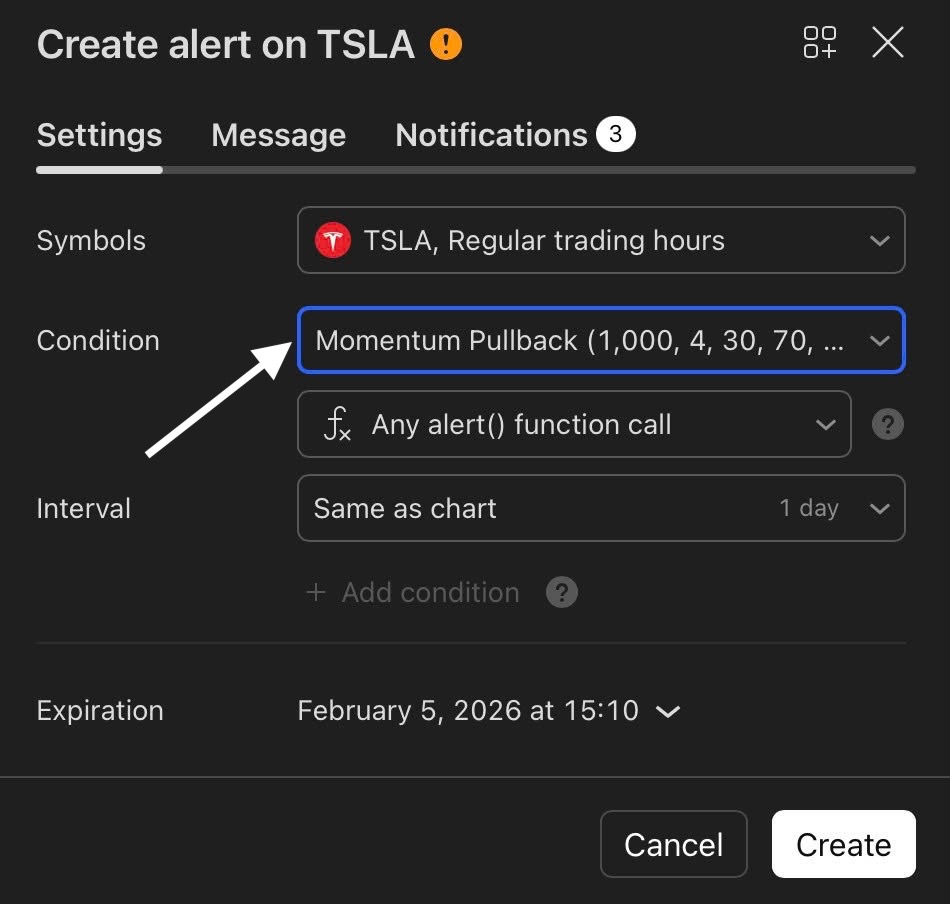
In the Condition dropdown list, select Momentum Pullback.
Step 4:
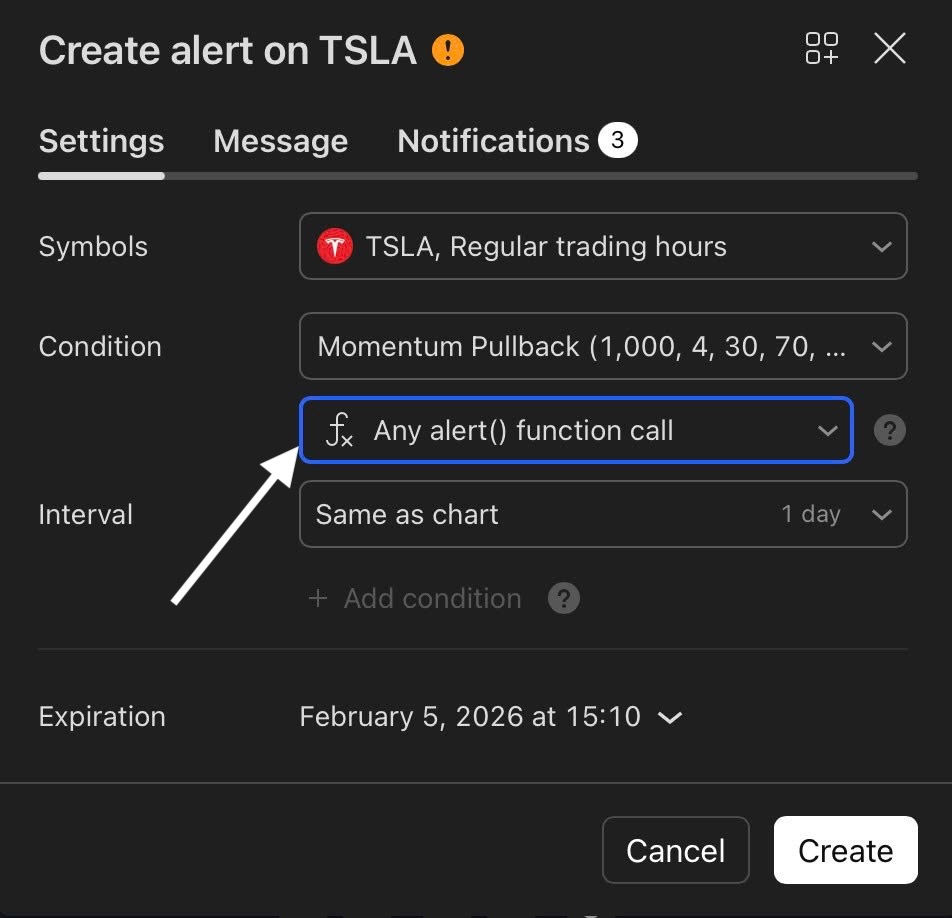
Select “Any alert() function call”, then click “Notifications.”
Step 5:
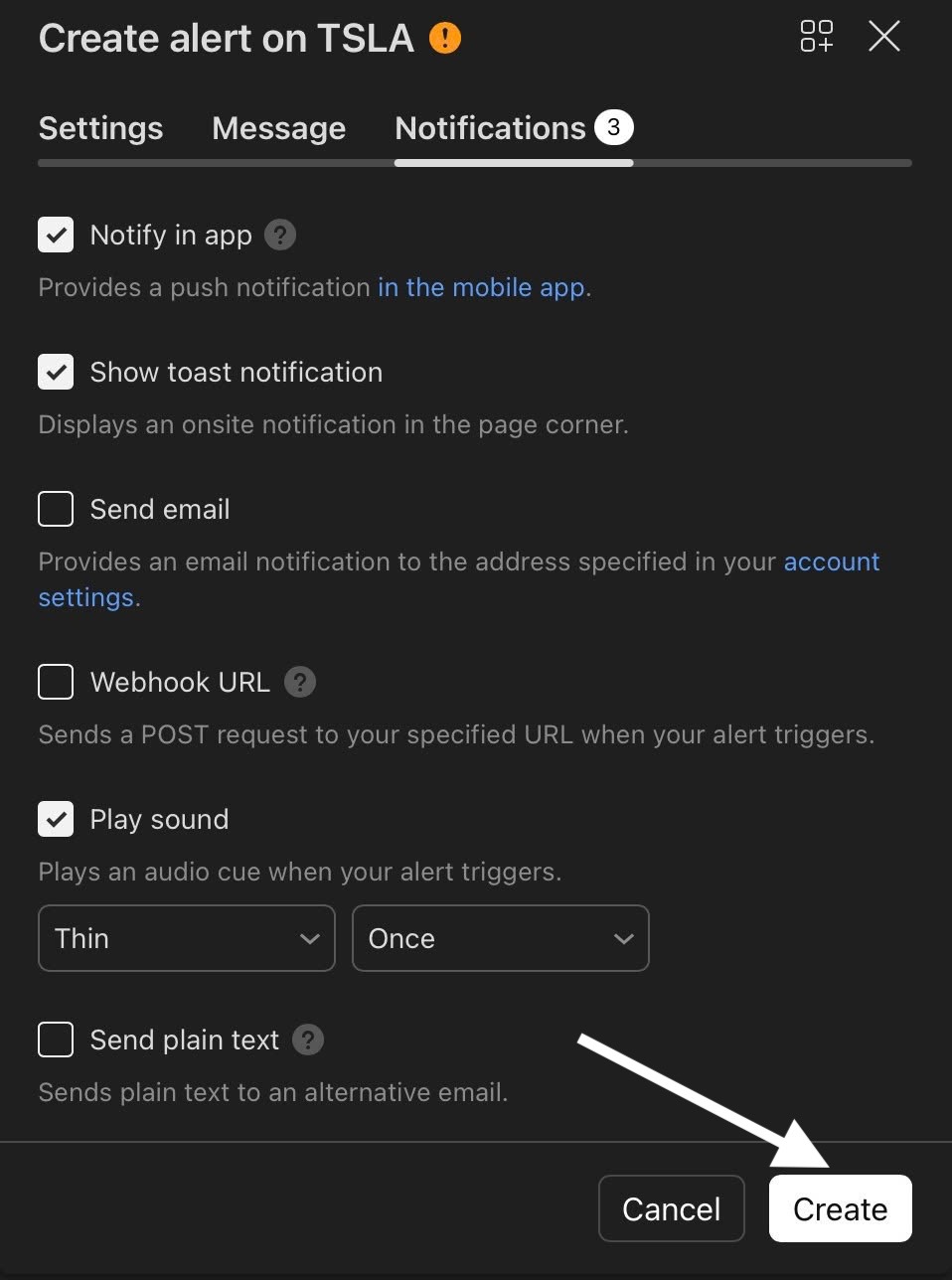
Choose how you want to receive alerts and click “Create.”